

Detailed Instructions: How to Re-Enroll
To access the new platform:
For online banking: Click the Login button in the upper right corner of the Self-Help website. Then, in the location window that opens, choose the yellow button on the left.
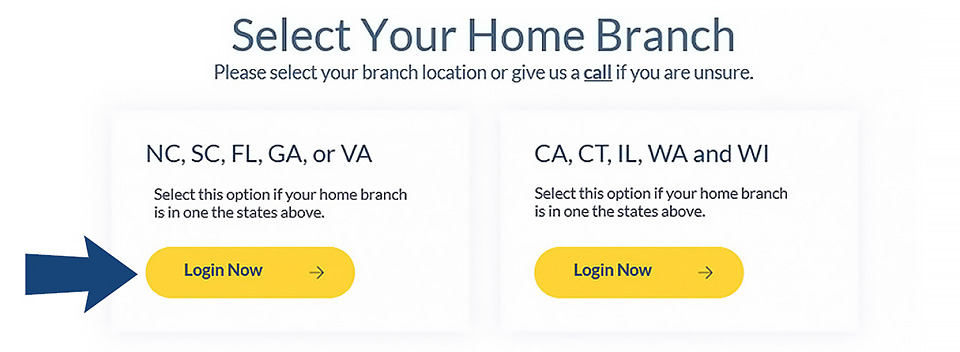
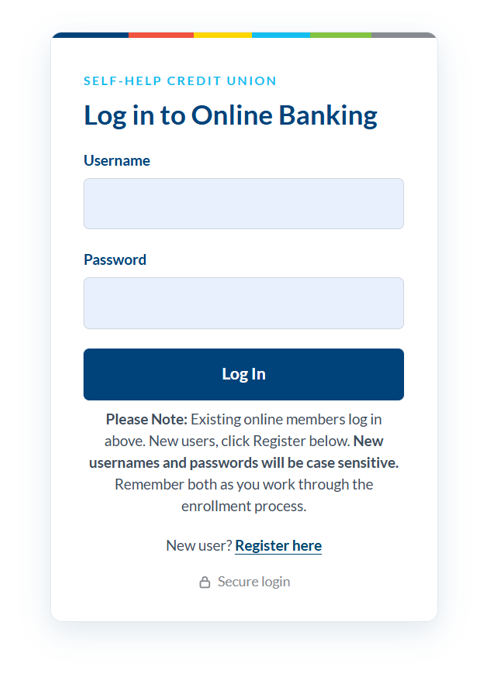
For mobile banking: Delete the old SHCU app and download the new app from the App Store or Google Play. Open the new app and enter your current username and password.
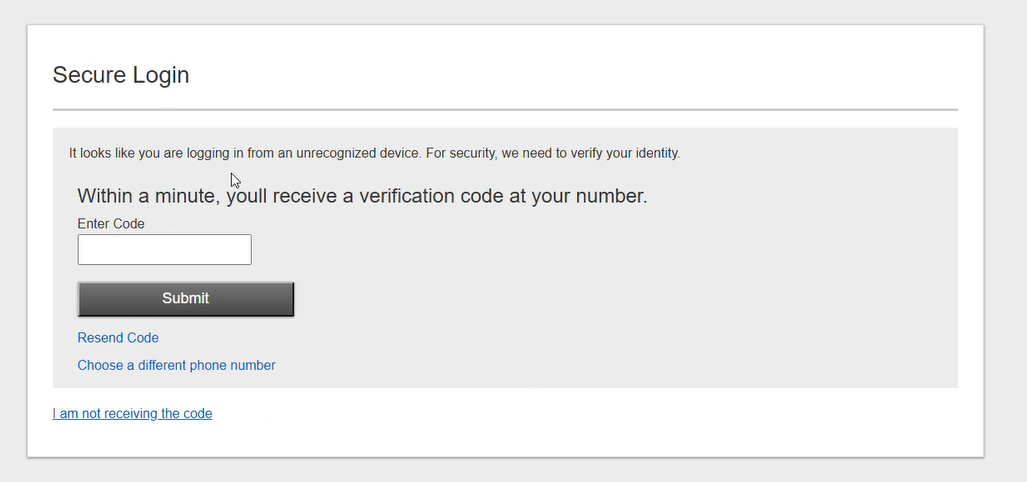
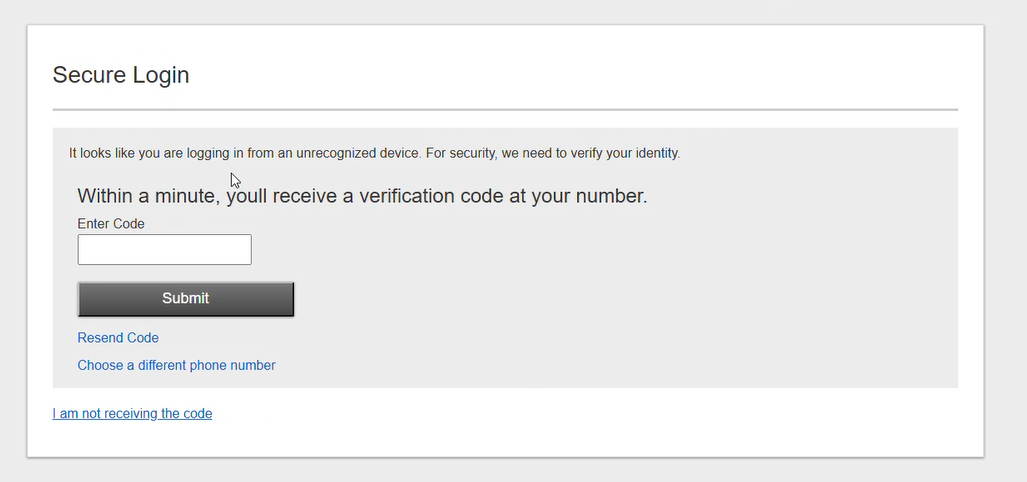
For security purposes, you will need to verify your identity. Click or tap "Text Me" on the Secure Login screen.
Troubleshooting tip
I can't receive text messages at the number listed.
We will have to verify your identity manually. Call the member support team at (800) 966-7353.
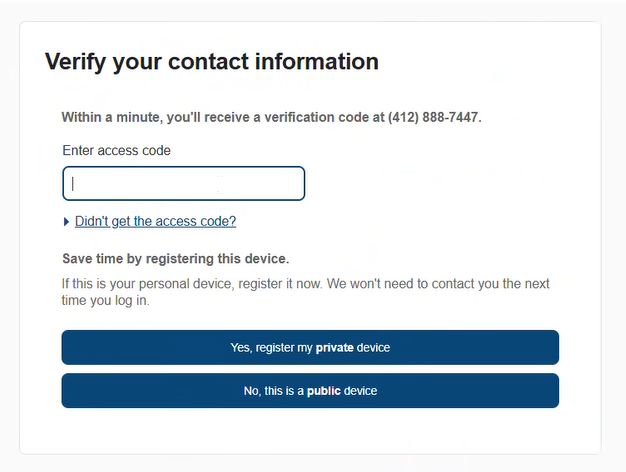
You will receive an SMS text message to the number listed that contains a 6-digit verification code.
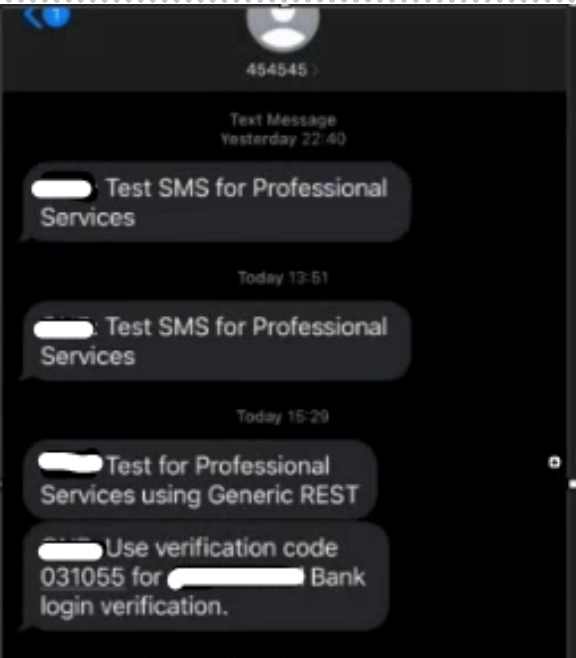
Enter the verification code on the next screen.
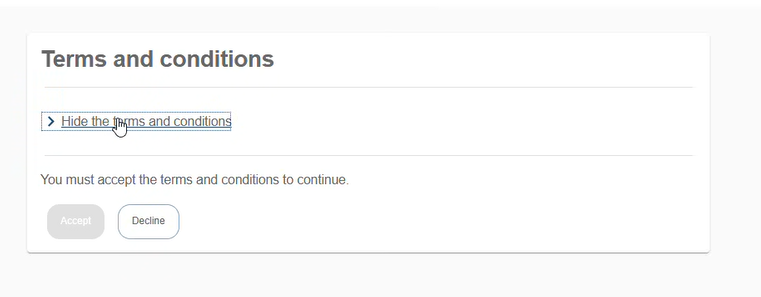
View and accept the Terms and Conditions.
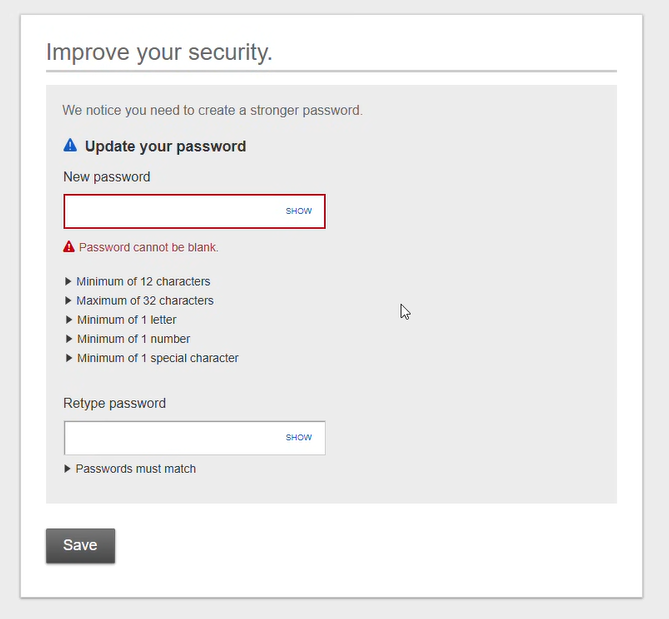
You will be prompted to create a new username and password.
Username requirements
- Must be 6 to 12 characters
- Must include letters
- Optional: Can include numbers
- Optional: Can include allowed special characters: @ $ * _ - = ! ~
- Cannot be all numbers
- Cannot contain spaces
Password requirements
- Must be 12 to 32 characters
- Must include upper and lowercase letters
- Must include at least one number
- Must include at least one allowed special character: @ $ * _ - = . ! ~
- Cannot contain username
- Cannot contain spaces
Usernames and passwords are case-sensitive. You cannot use your member number as your username.
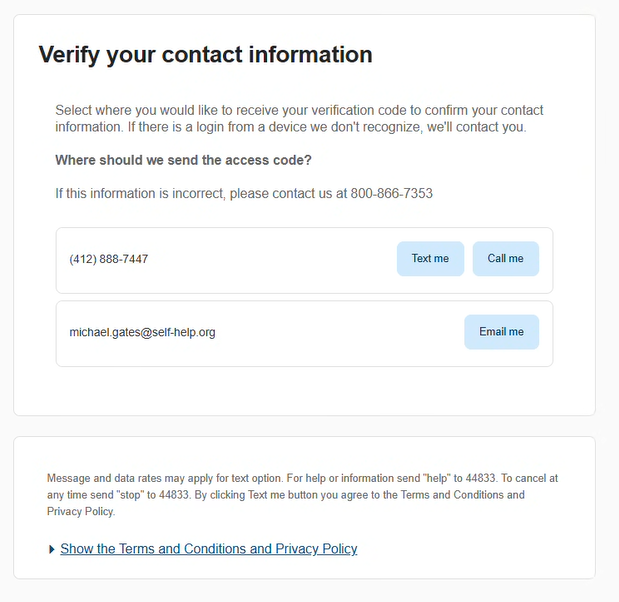
For security purposes, you will need to verify your identity again. Select either "Text me" or "Call me" to receive another verification code. Either enter the code on the next screen (for online banking) or reply to the text with the verification code (if you are using the SHCU mobile app).
Have questions or need help? Check out troubleshooting tips in our FAQ. If you're still stuck, we're here to help. Call member support at (800) 966-7353.